01
Everything at a glance
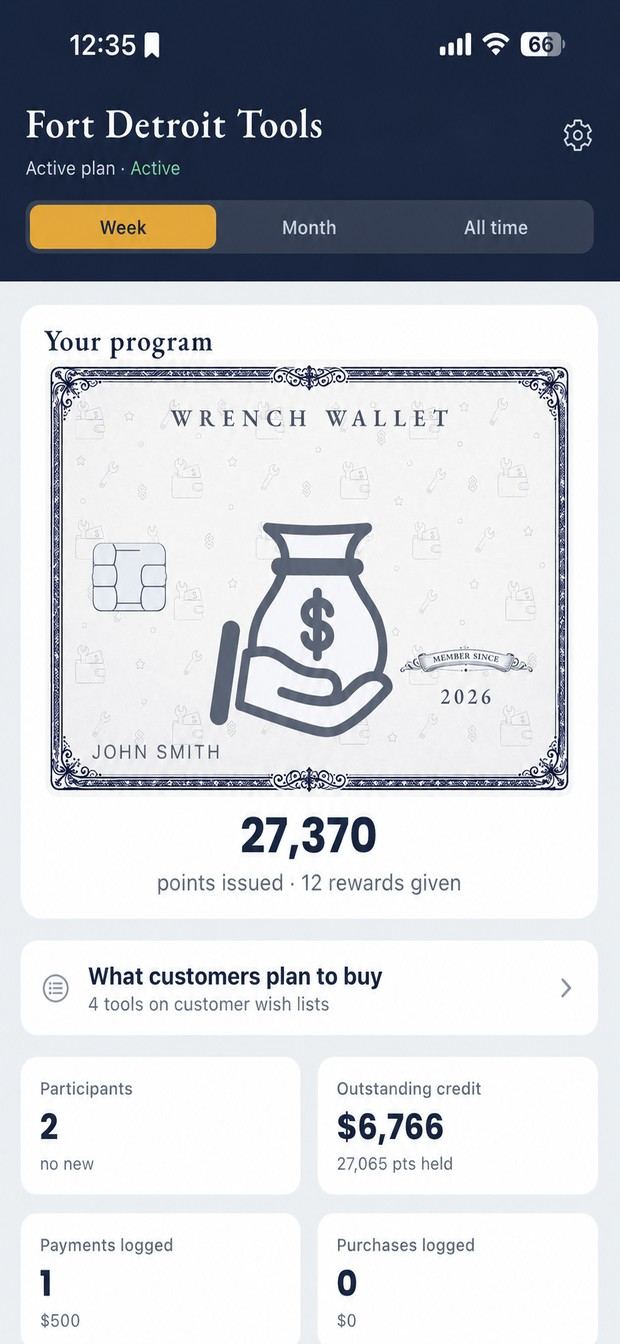
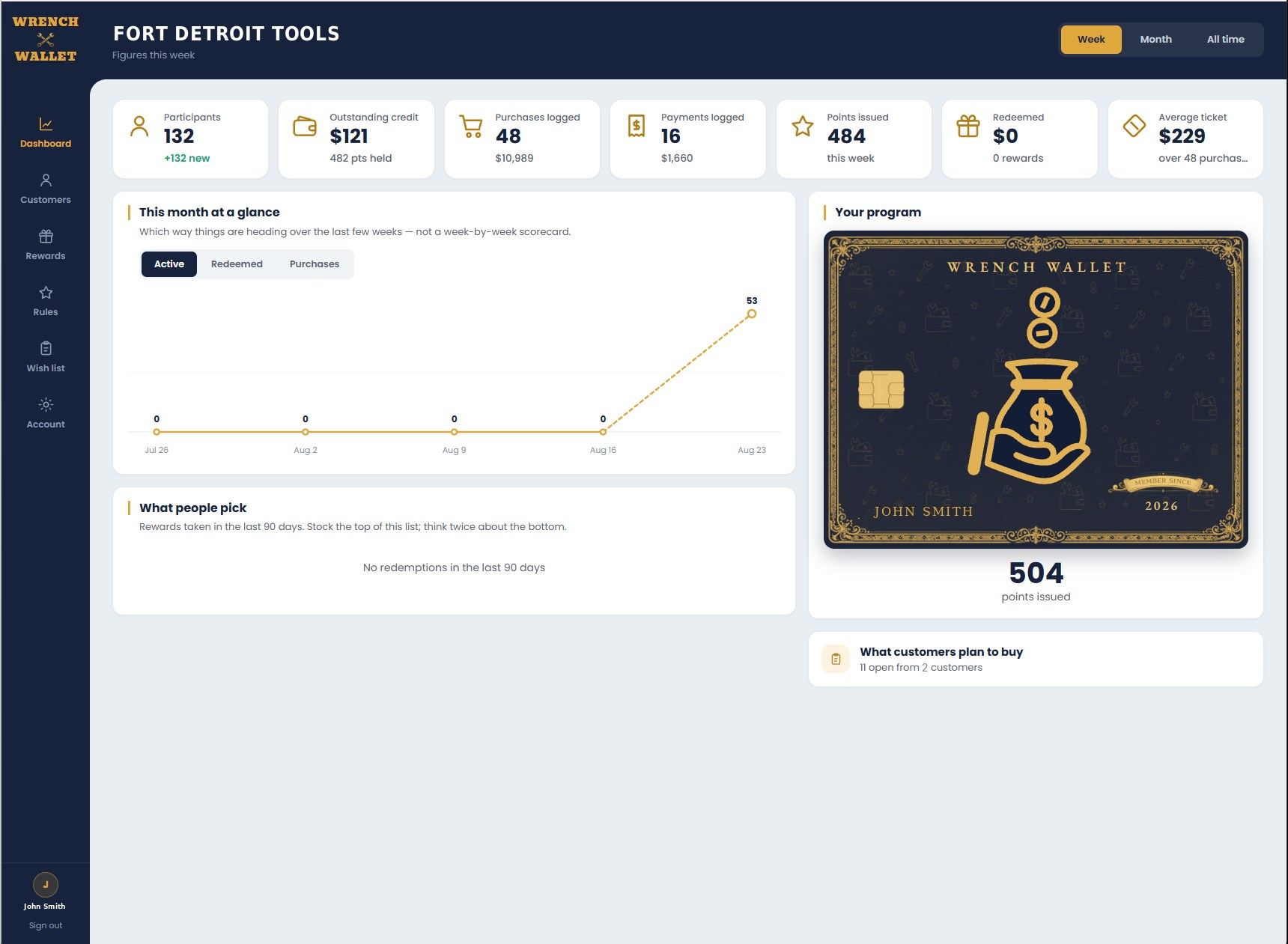
The first thing you see. The card in the middle is your program: every point you've issued and every reward taken. The buttons above switch the figures between this week, this month and all time.
How it works
Two apps and a web console. One you run the program from, a free one your customers carry, and the same program on a computer when you'd rather not do it on a phone. None of it needs a card reader.
01 · On the truck
What you use at the window. Twenty-four screens, most of which you'll touch once a week or less.
The dashboard
The first thing you see. The card in the middle is your program: every point you've issued and every reward taken. The buttons above switch the figures between this week, this month and all time.
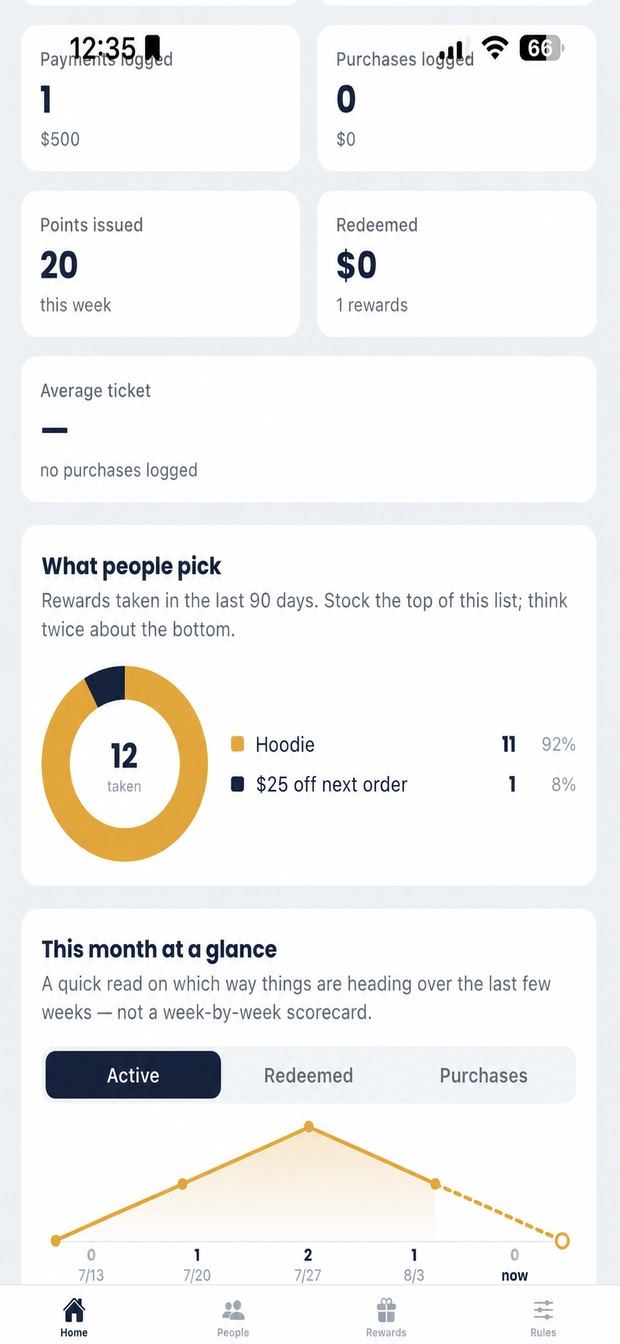
Scroll down and the numbers get useful. Average ticket tells you whether points are making people spend more. What people pick shows which rewards get taken. The line underneath is the direction over the last few weeks.
Wish lists
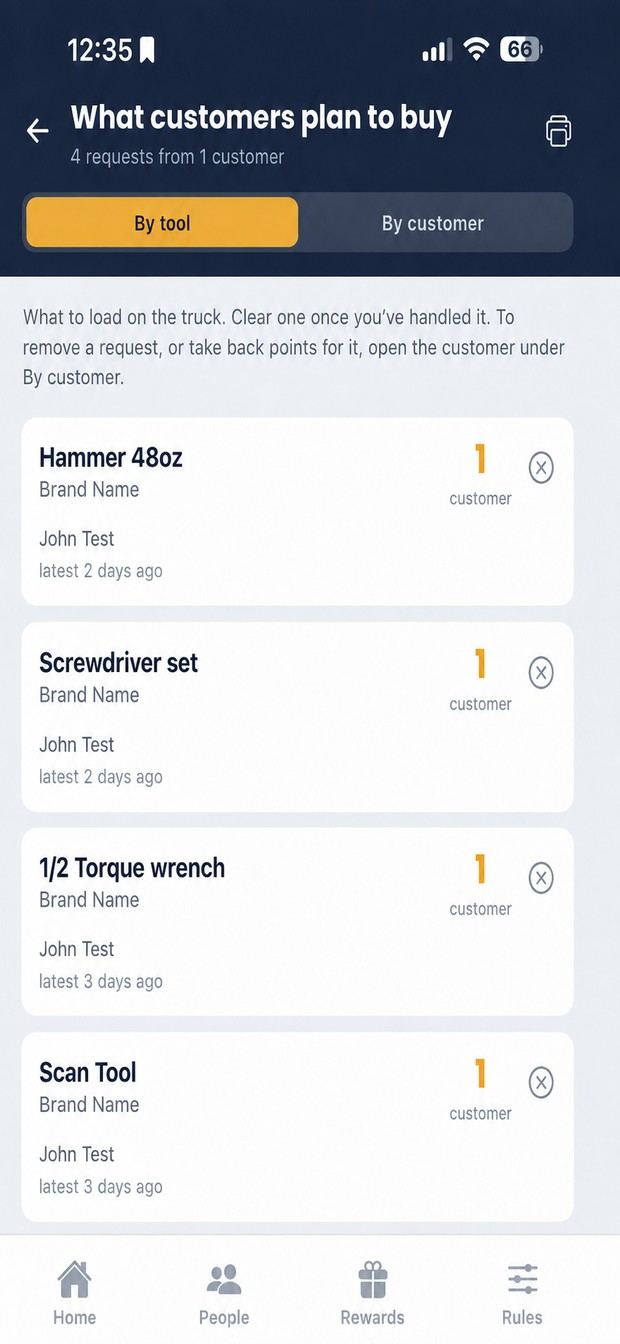
Grouped by tool, so twelve people wanting the same ratchet is a number you can take to your distributor. This is the view to load the truck from.
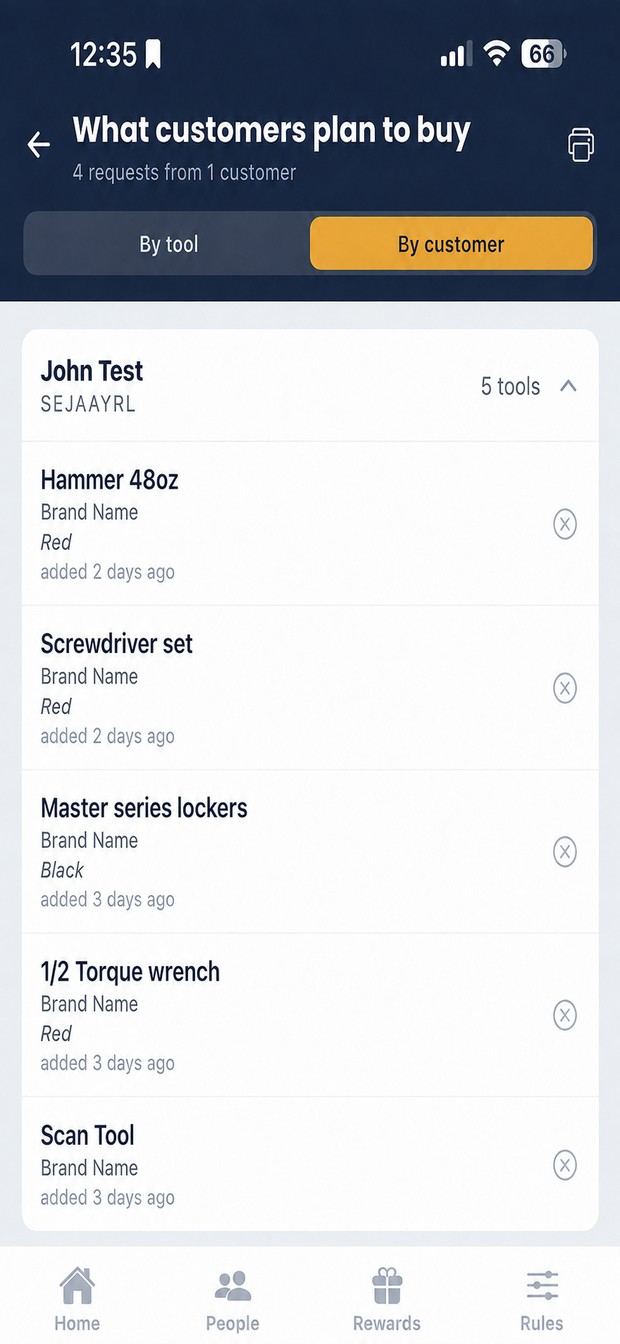
The other tab answers who asked. Useful when someone's standing at the truck and you want to know what they've been after.
Your customers
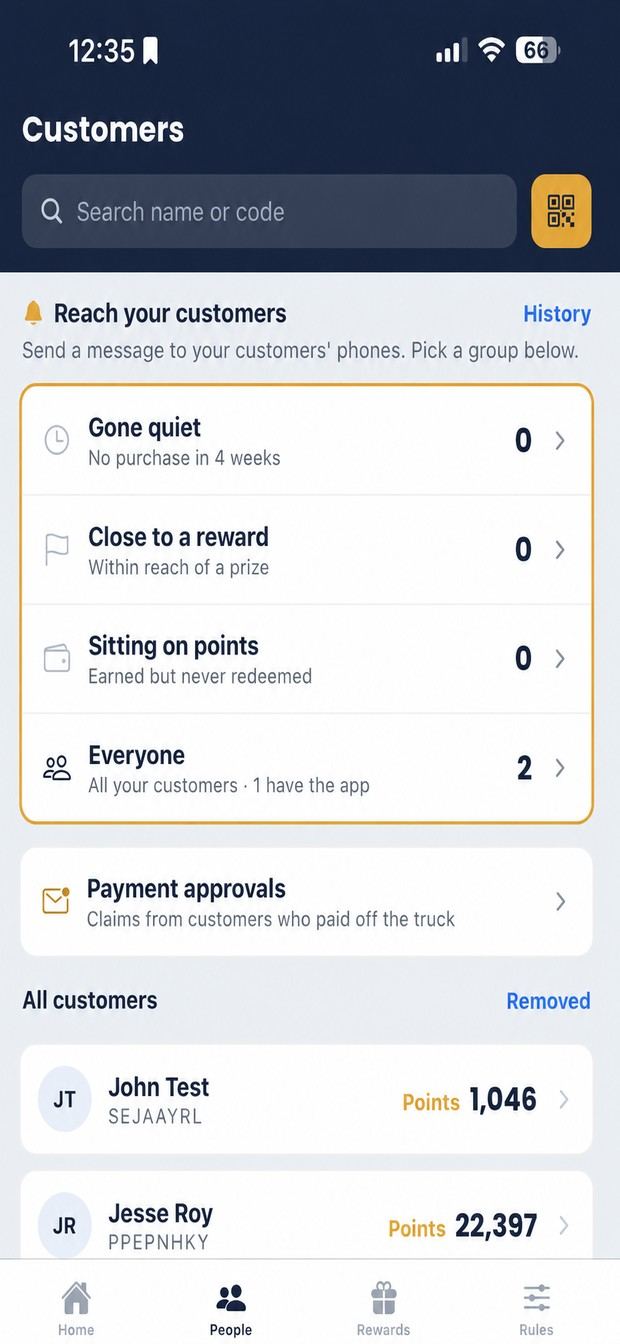
Every customer with their balance. The rows at the top are groups you can message in one tap: gone quiet, close to a reward, sitting on points, everyone.
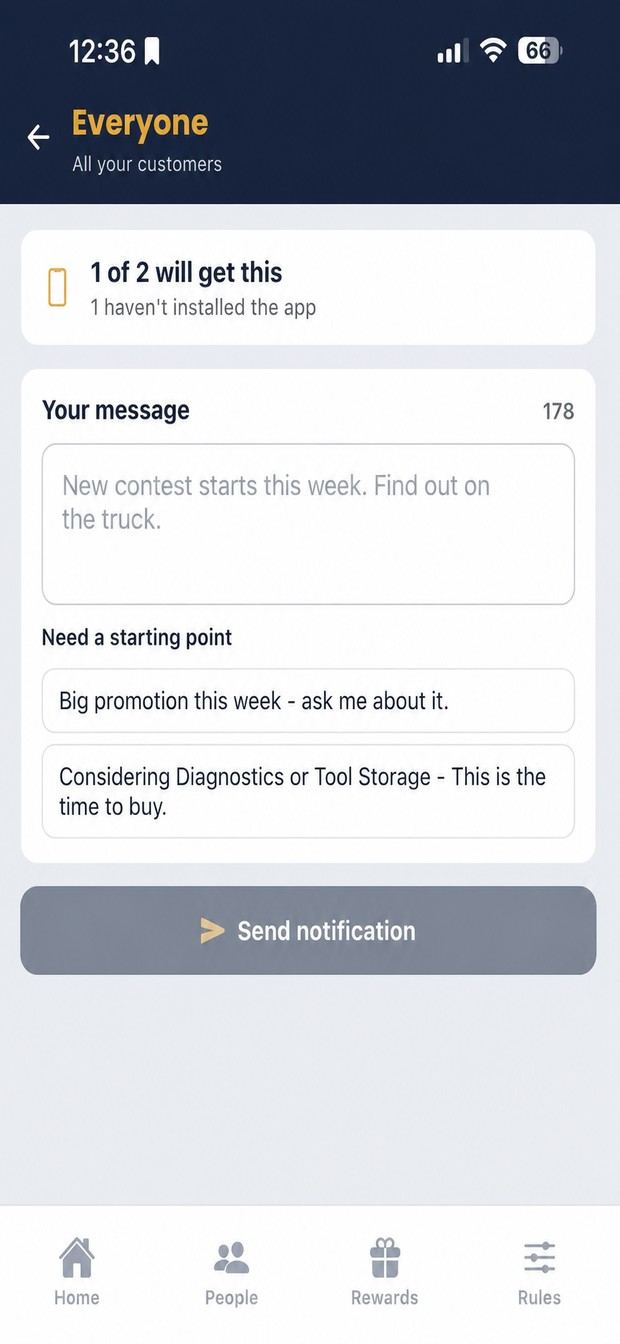
Pick a group, write a line, or take a suggestion. It lands on their phones as a notification. No phone numbers, no texting costs.
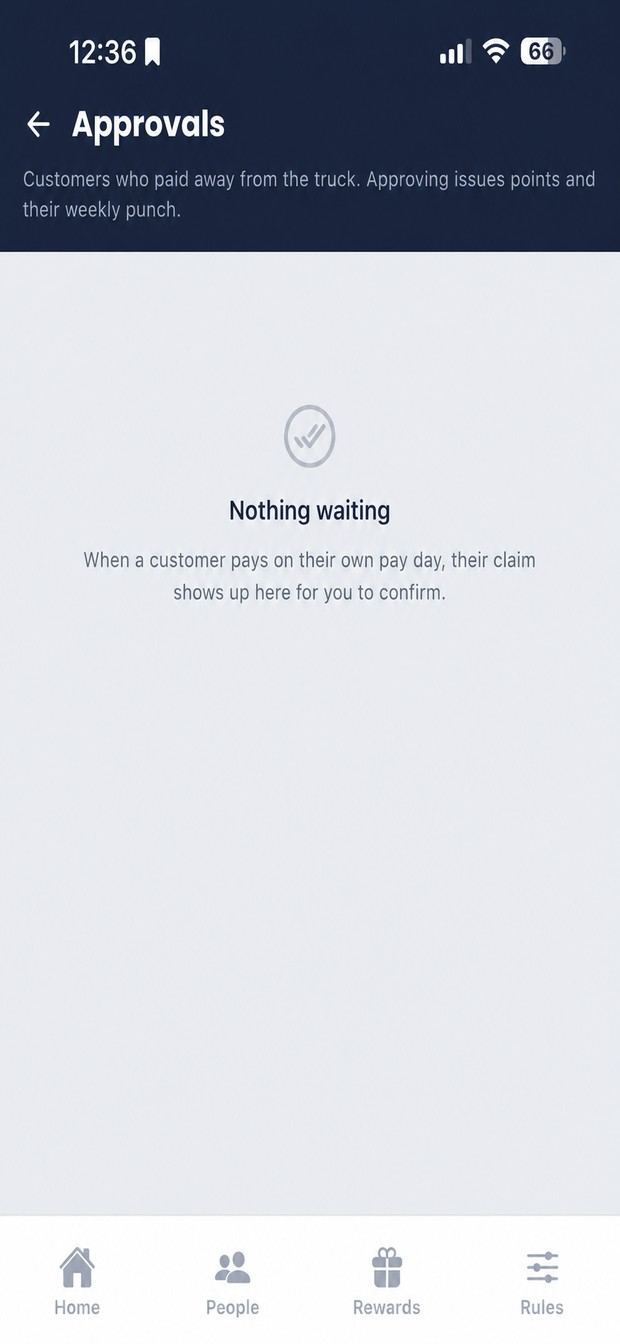
When a customer pays you somewhere else, they tell the app and it lands here. Nothing touches their balance until you approve it.
A customer, up close
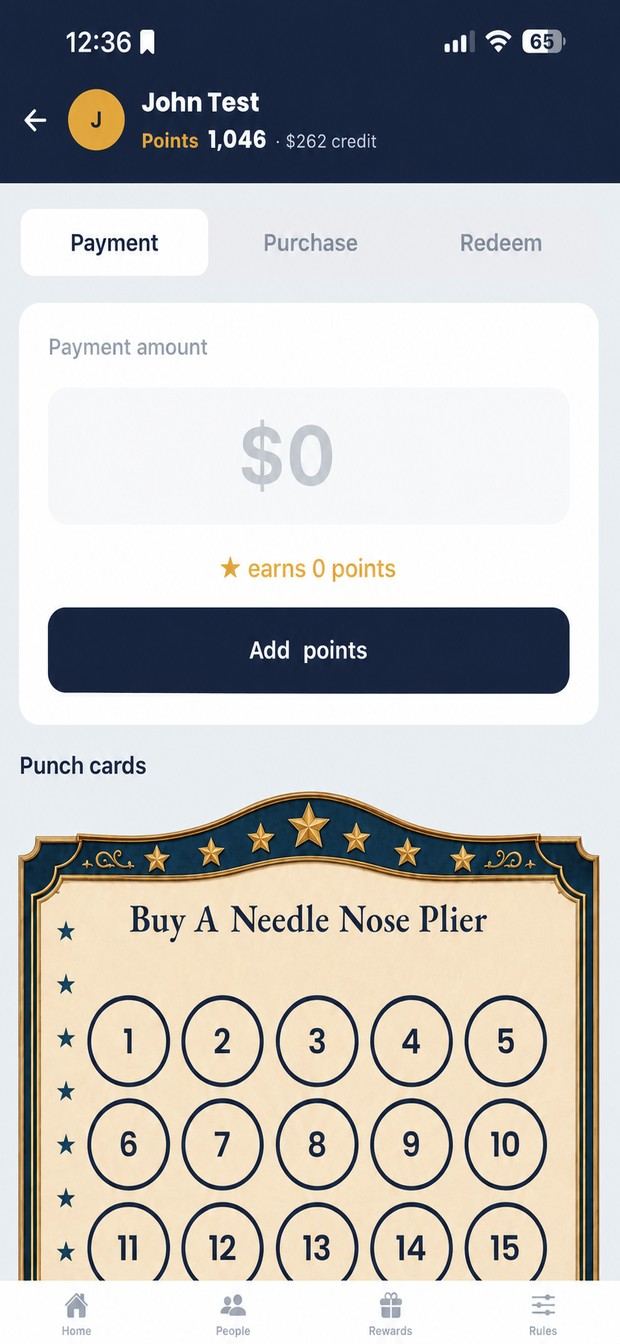
Tap a customer, type what they spent, and the app works out the points from your rules. Payment and Purchase are separate tabs so they can earn at different rates.
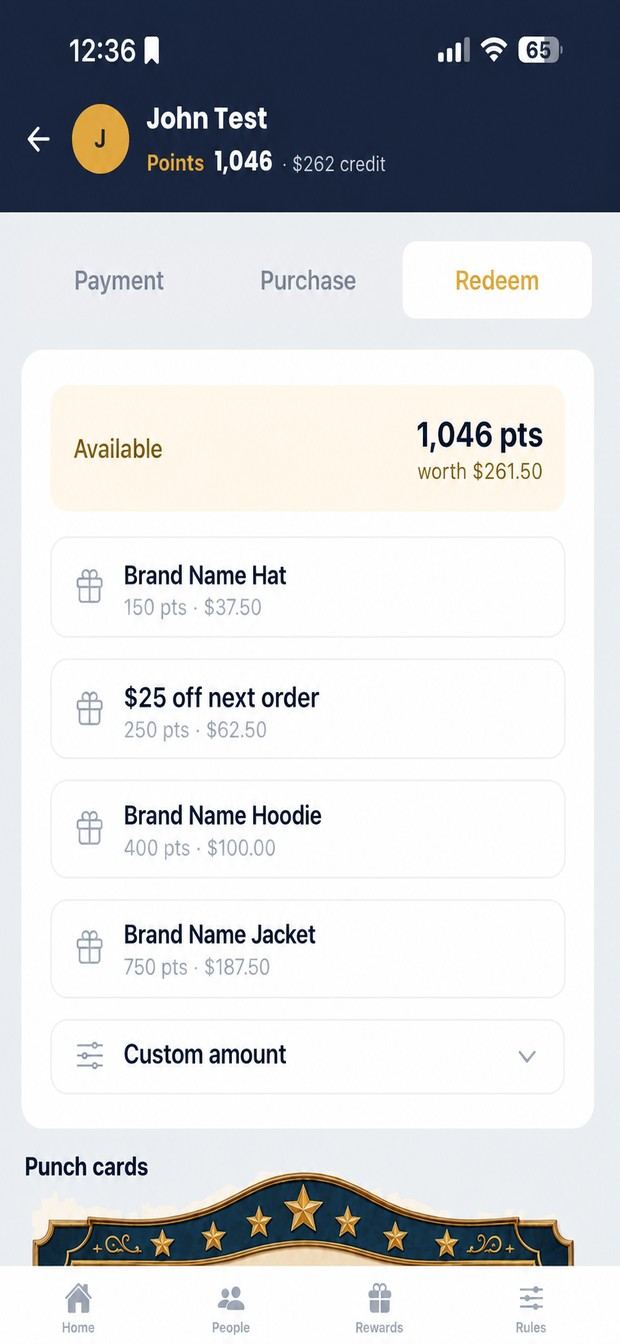
What they can afford right now and what each reward costs. Balance at the top in points and dollars. No mental arithmetic at the truck.
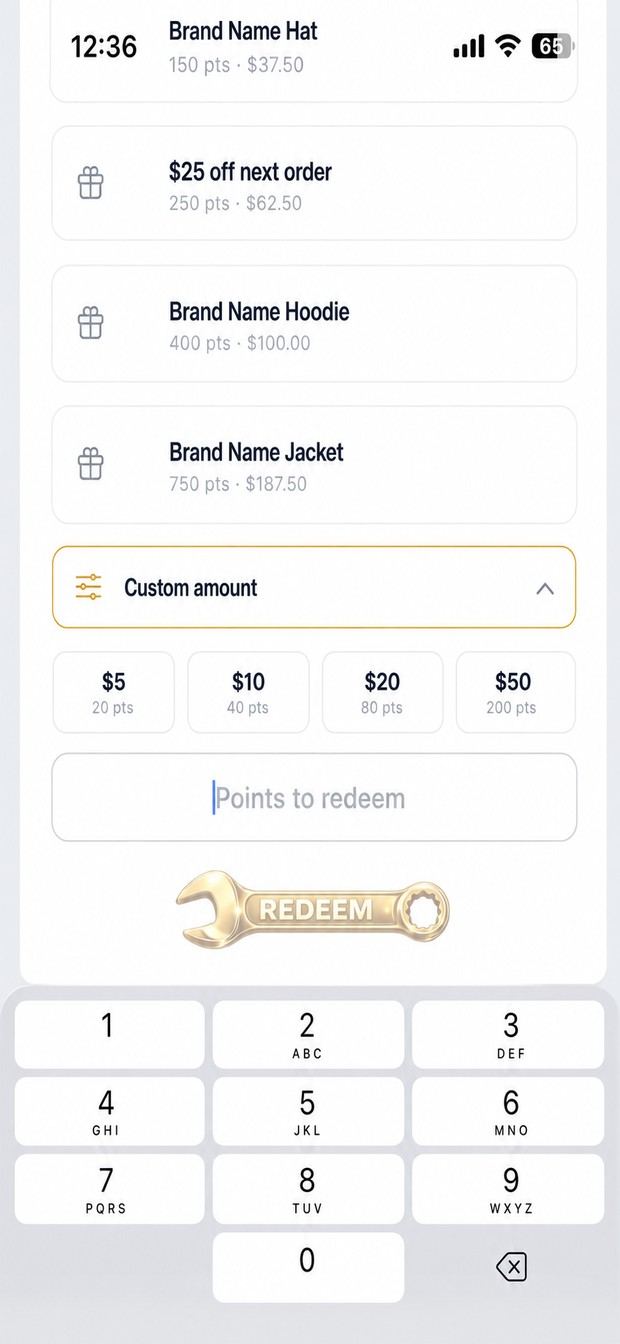
Custom amounts for when nothing on the list fits. Shortcuts for $5, $10, $20 and $50, each showing its cost in points.
Punch cards
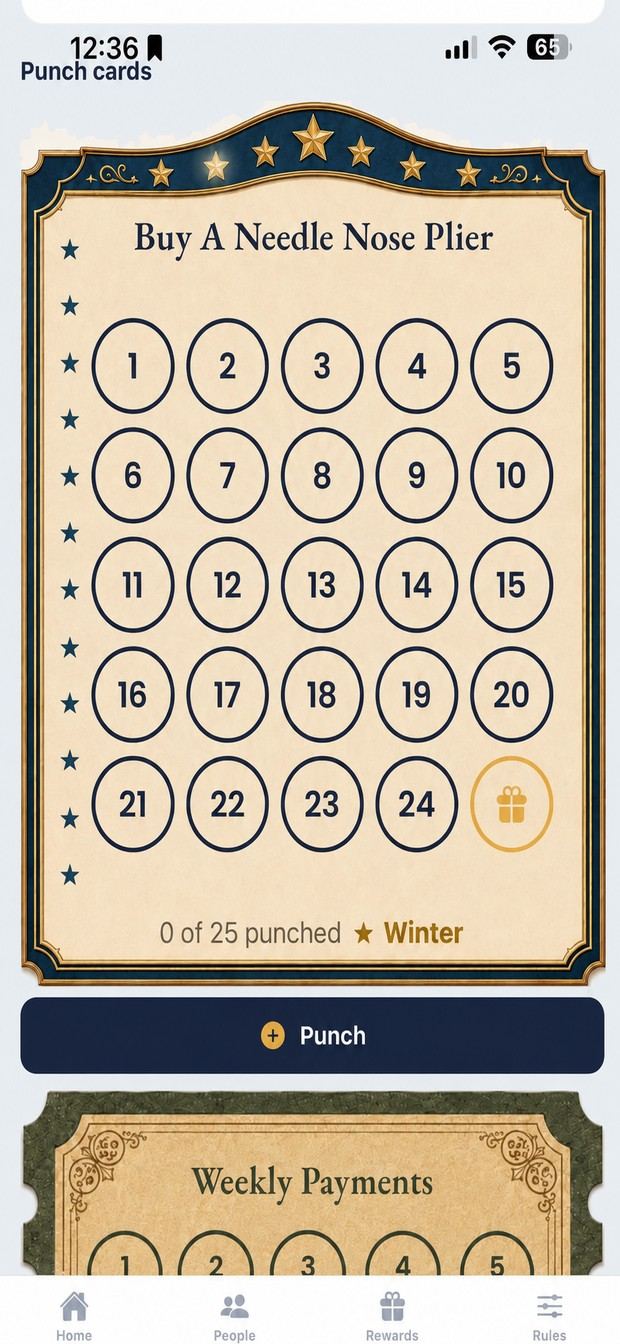
Buy ten, get one. Ten purchases, twelve, twenty-five. You decide when you make the card.
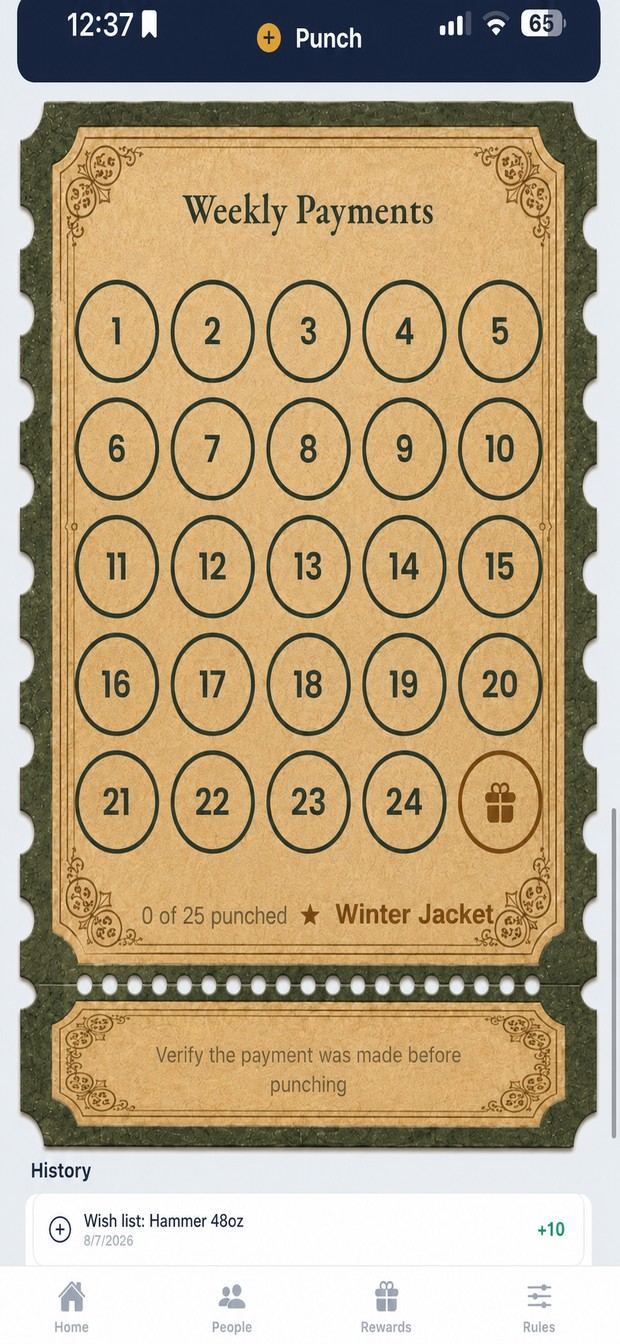
One tap per qualifying purchase. The app asks you to confirm the payment was made first: a punch you can't take back is worse than a moment of friction.
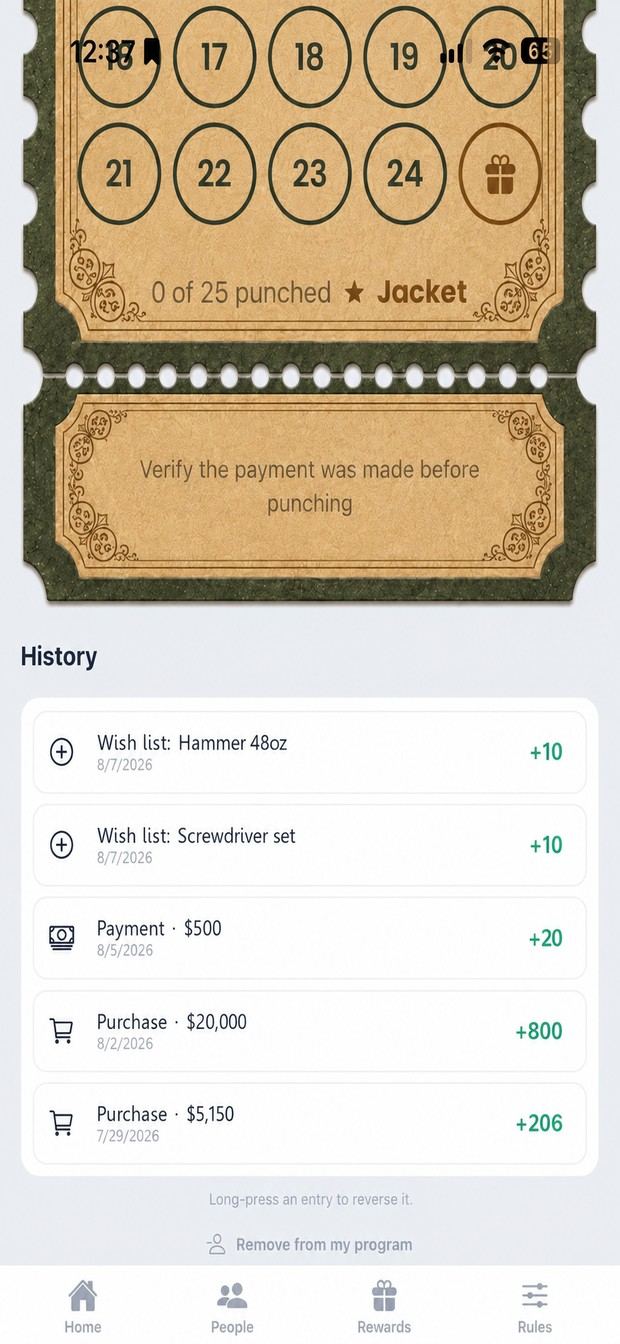
Every punch, purchase and payment on that card, in order, with the points each earned. If a balance is ever queried, this is the answer.
Rewards & deals
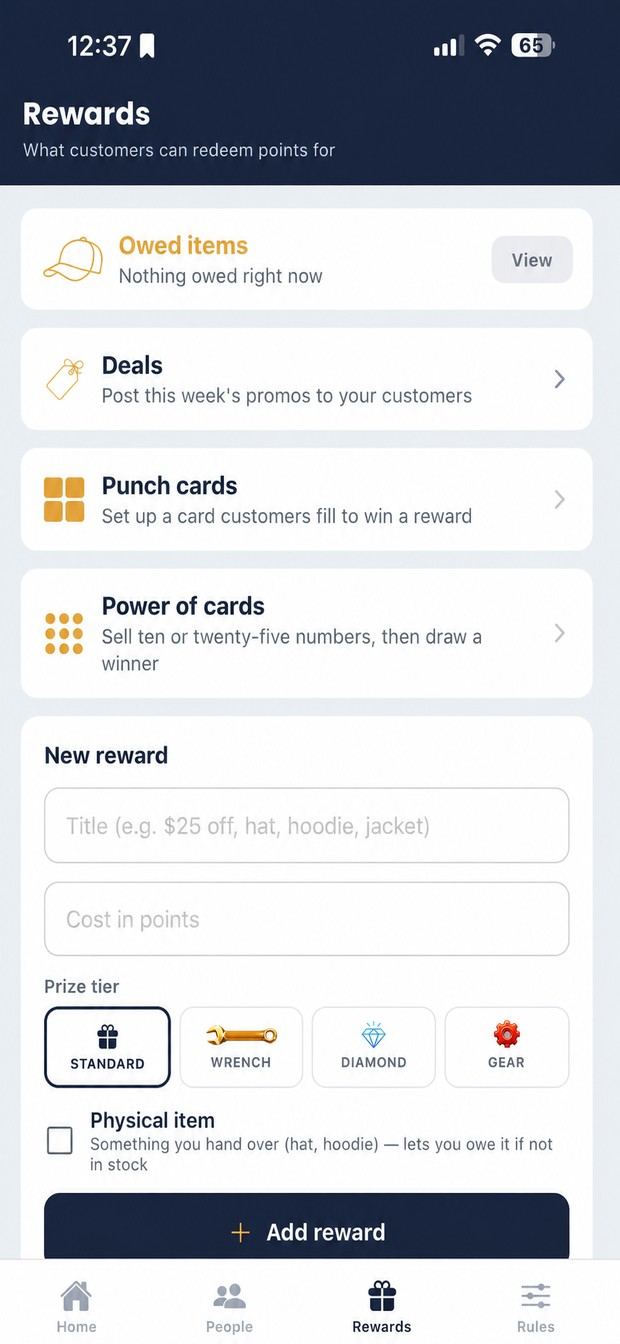
The rewards hub. Owed items is anything promised but not on the truck; it stays on the list until you hand it over.
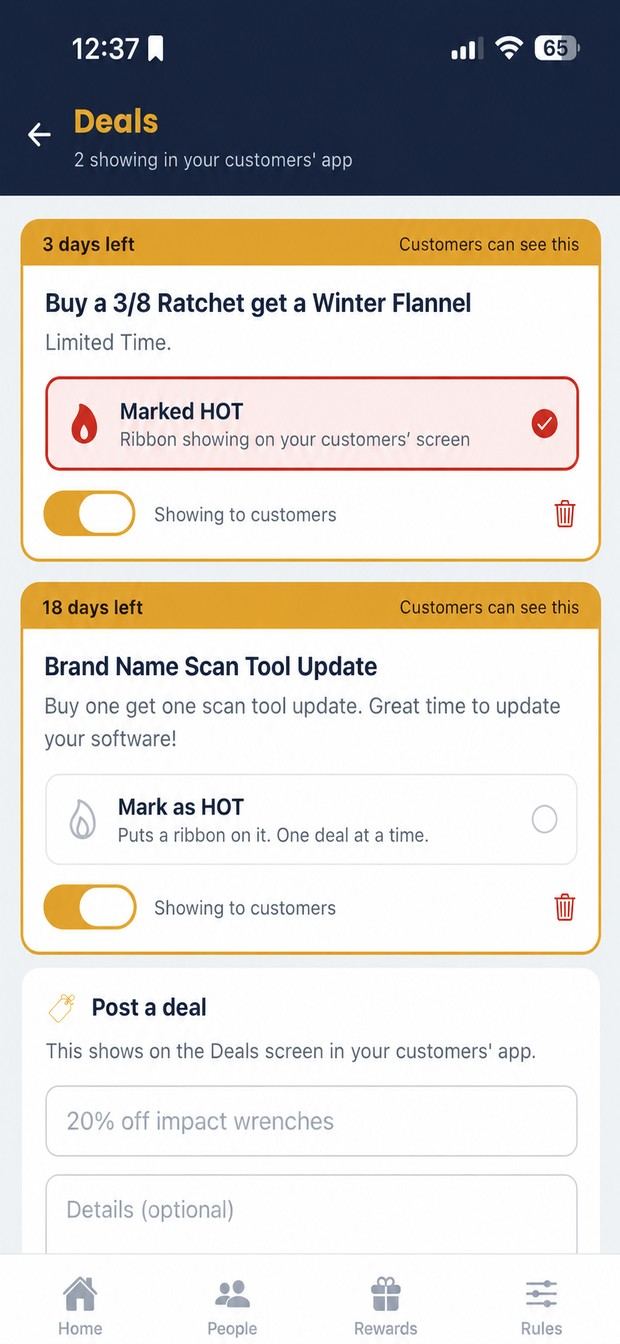
Deals scroll across the top of the customer app. Mark one hot for a badge. The countdown is live and the deal comes off on its own.
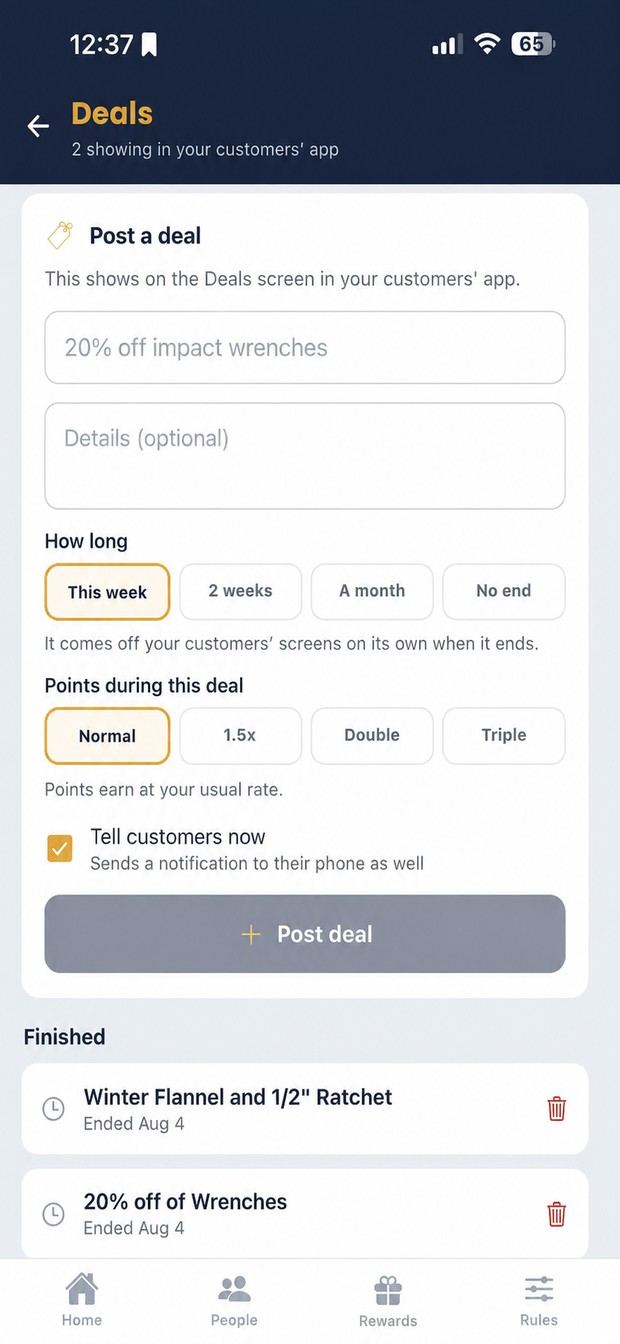
A title, a line of detail and how long it runs. Set double points here and it applies to every purchase while the deal is live.
Cards & draws
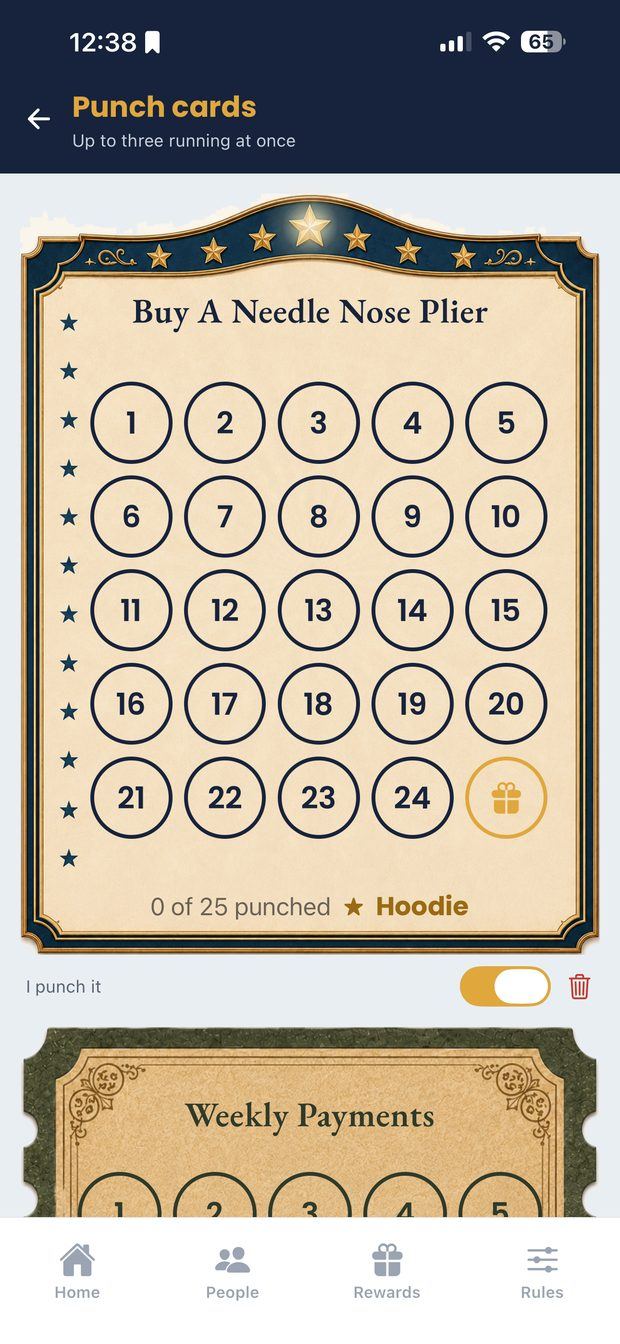
The punch cards you're running. A customer can be partway through more than one, and each tracks separately.
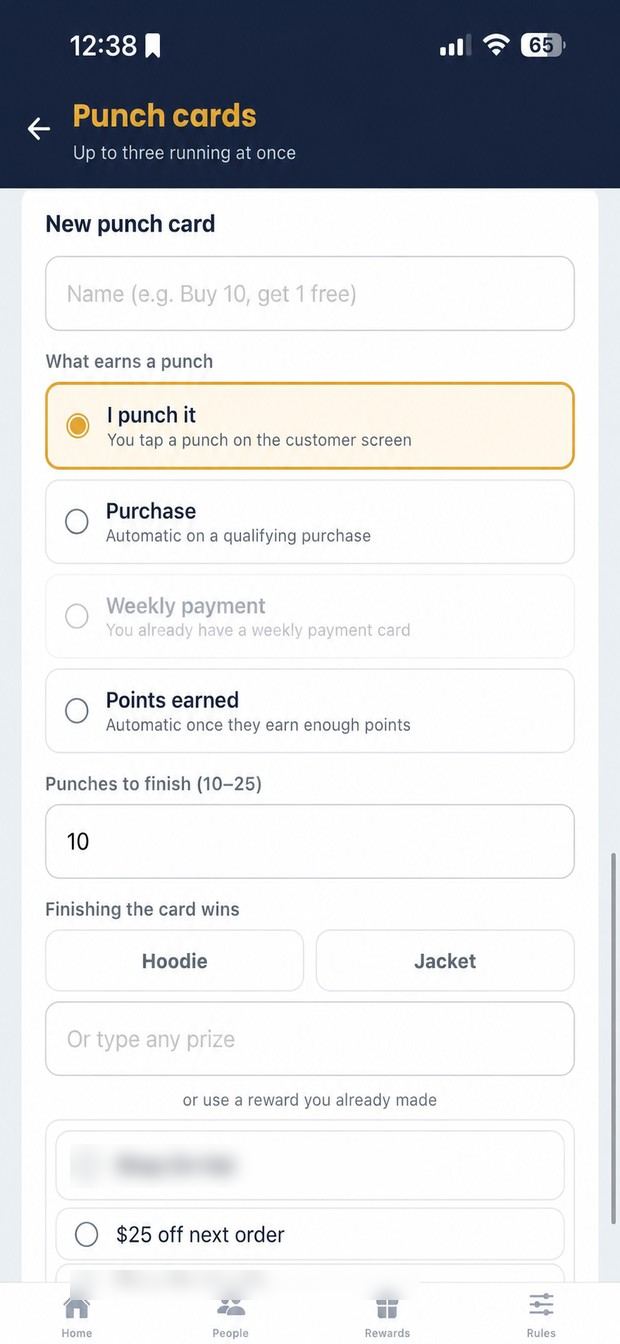
Name it, say what earns a punch (purchase, payment, or your say-so), how many finish it, and what they get.
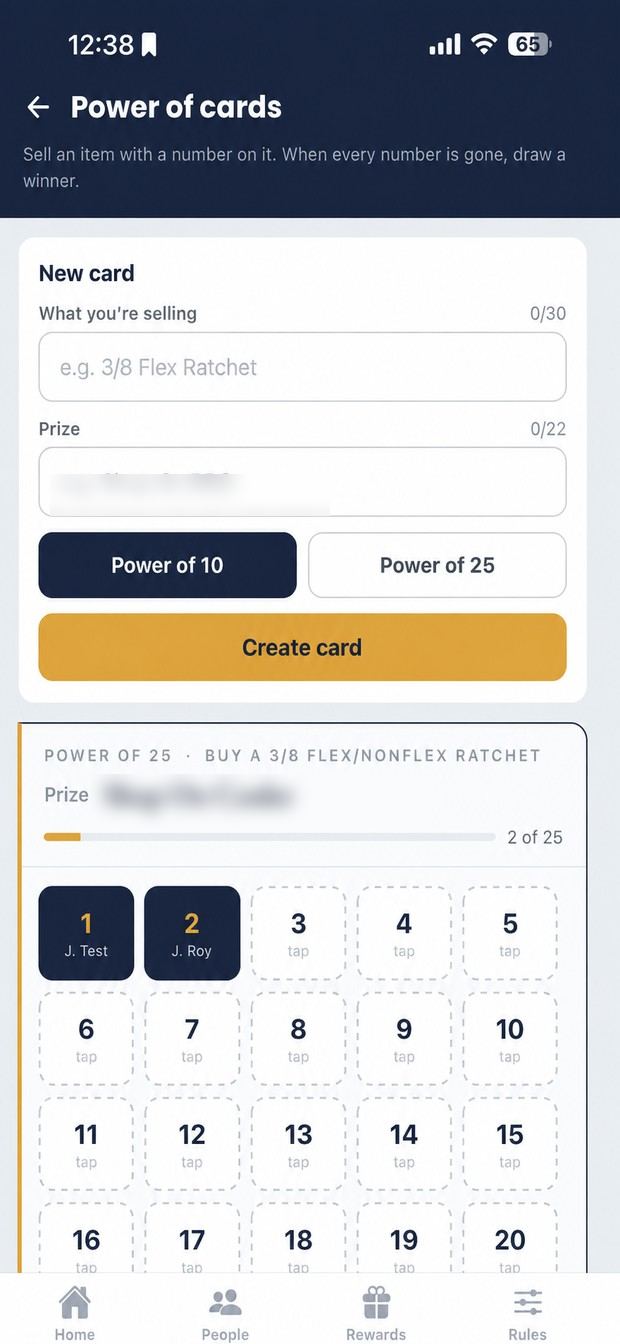
Numbered squares on a card, your price per square, your prize. Draw a winner when it fills. A raffle sheet nobody loses.
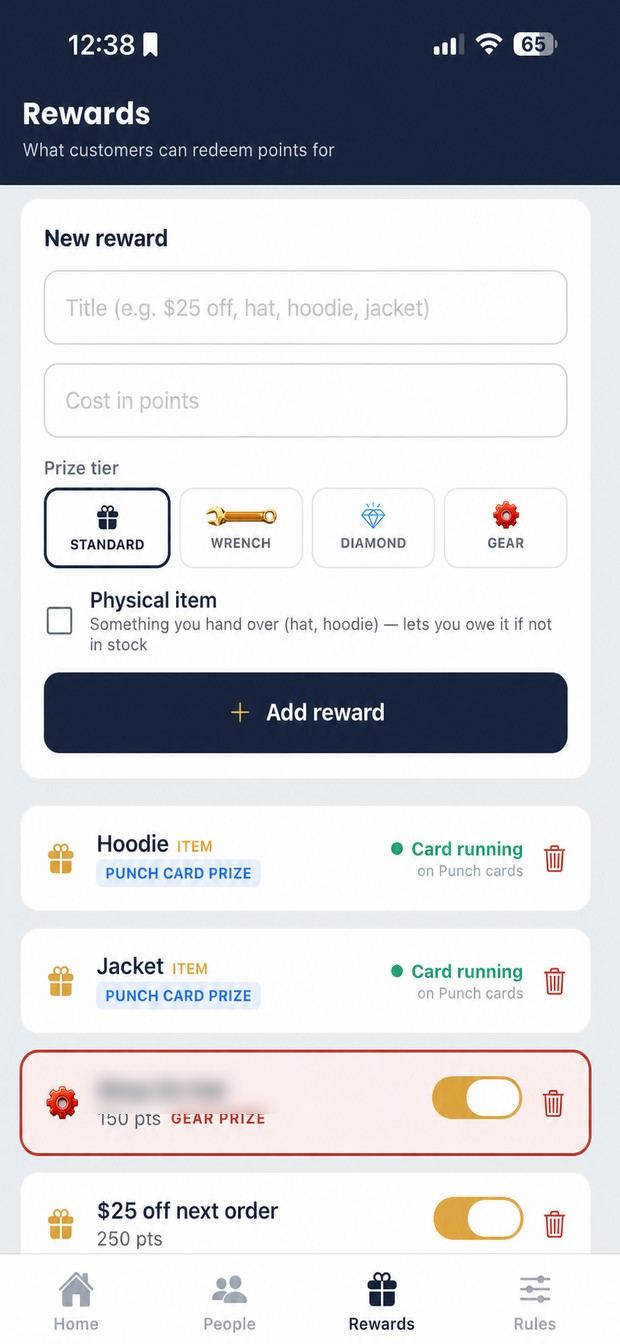
A name, a cost in points and a tier. Tick physical item for anything you hand over, so it can be tracked as owed.
Rules & account
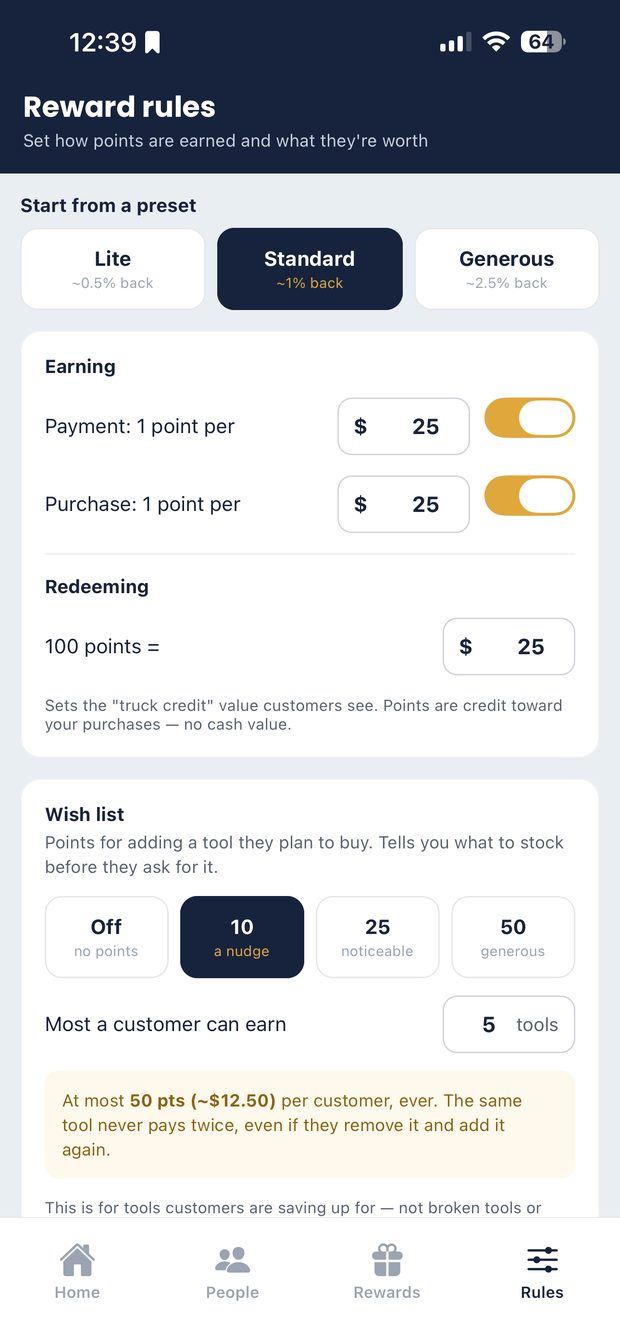
The one screen worth five minutes. Start from Lite, Standard or Generous, then adjust how points are earned and what they're worth.
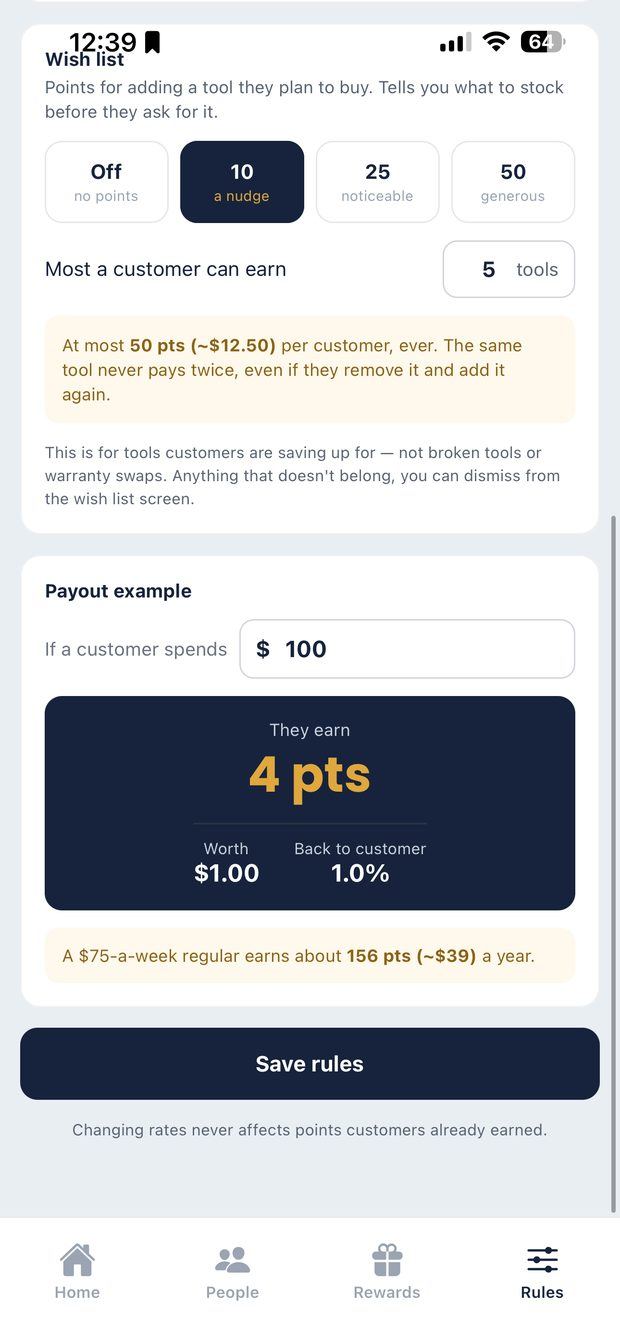
Type what a typical customer spends; see what they earn, what it's worth, and the yearly figure. Nobody should set a rate without this number.
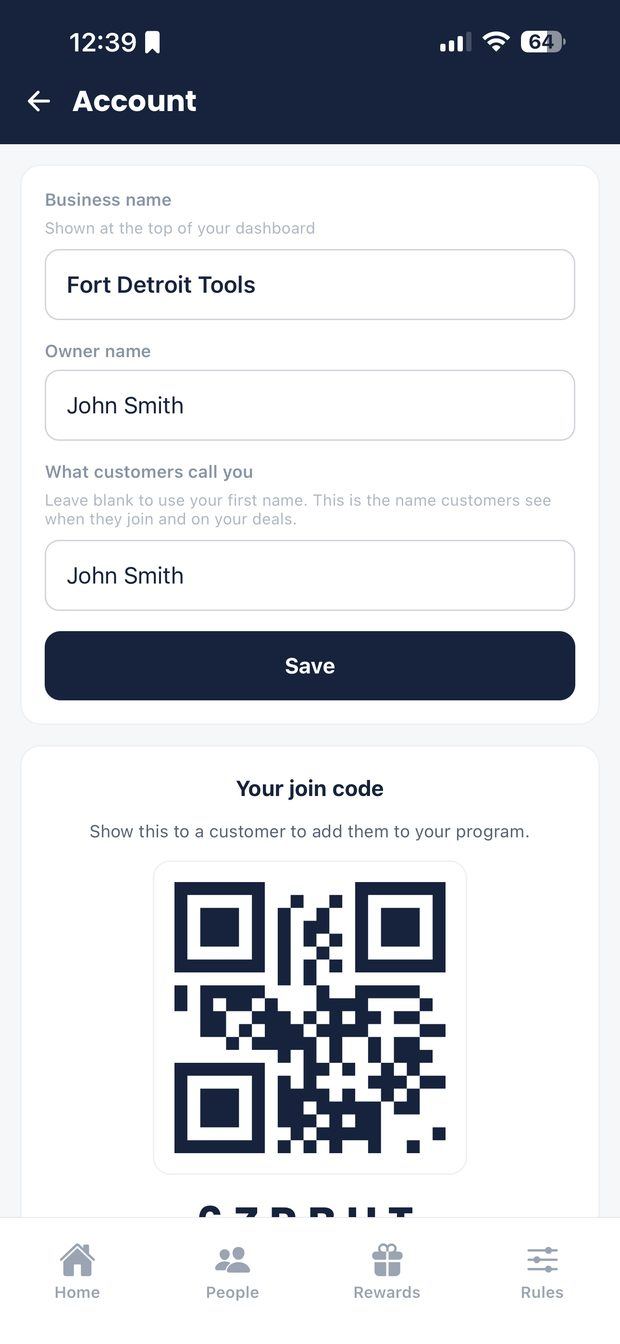
Your business name is what customers see when they join. Below it: your join code and a QR to scan.
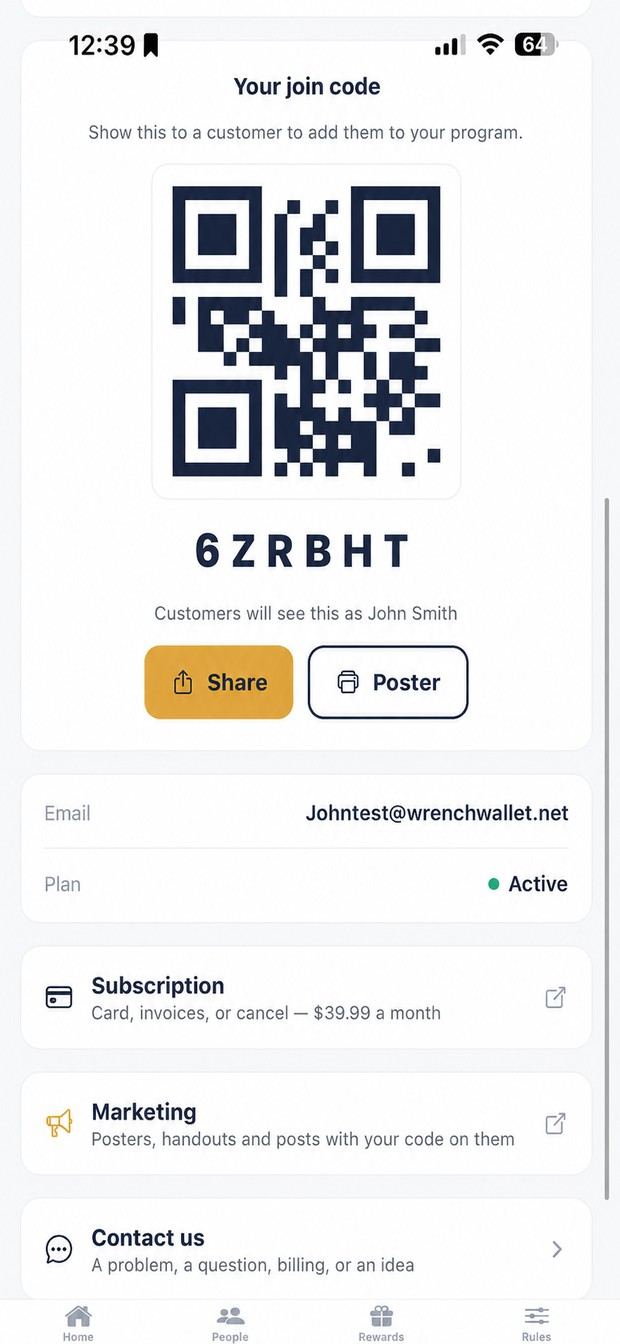
Marketing has posters, handouts and ready-written posts with your code. Share sends it to one person; Poster prints a sheet for the truck. Subscription is where you change your card or cancel.
02 · In their pocket
Free on iPhone and Android, always. Nothing to sign up for beyond the app itself. Points come from what they already buy off your truck.
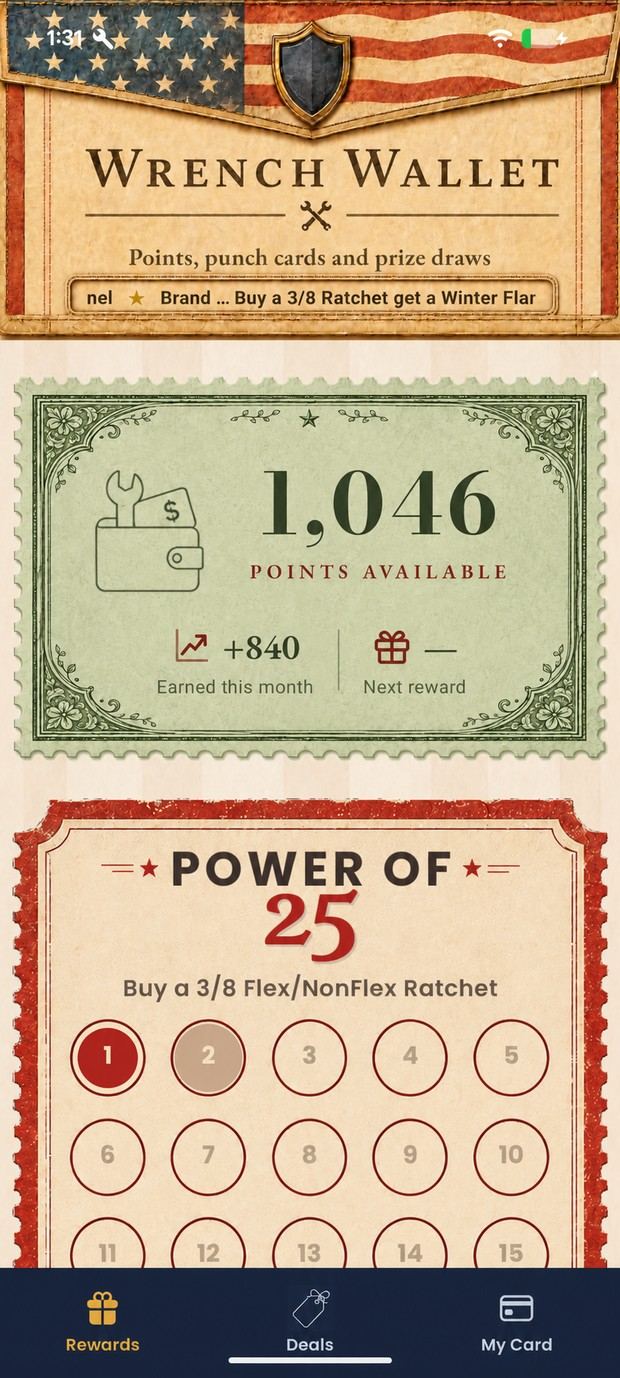
What you've earned and what you've picked up this month. Points come from what you already buy off the truck.
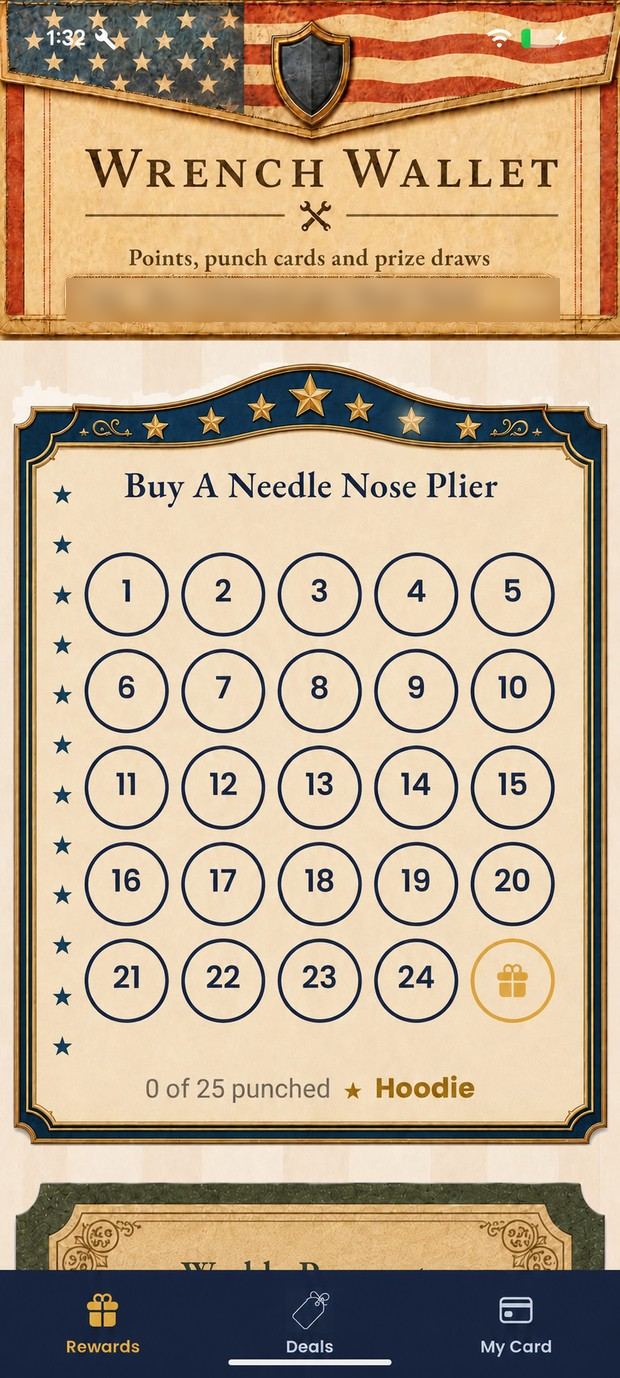
Every qualifying purchase gets a punch, and you can see how many are left. Fill it and the reward is yours.
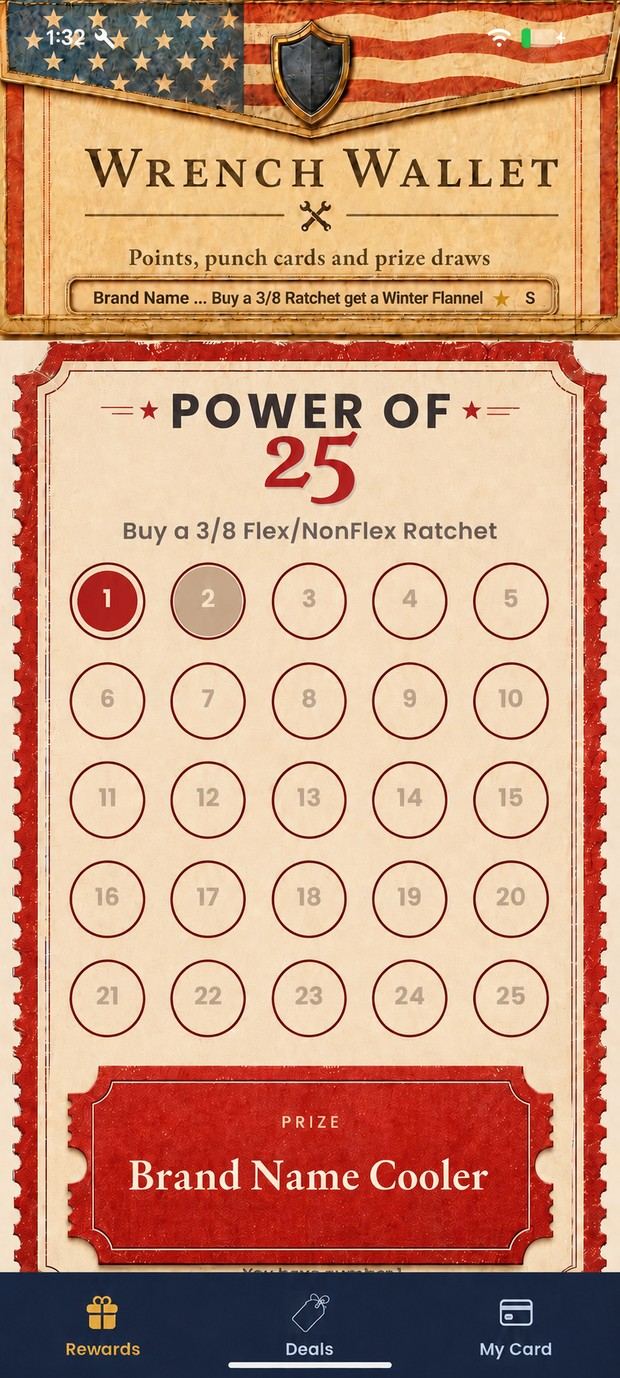
Buy a square, take a number; when the card fills your dealer draws. Taken numbers are greyed out.
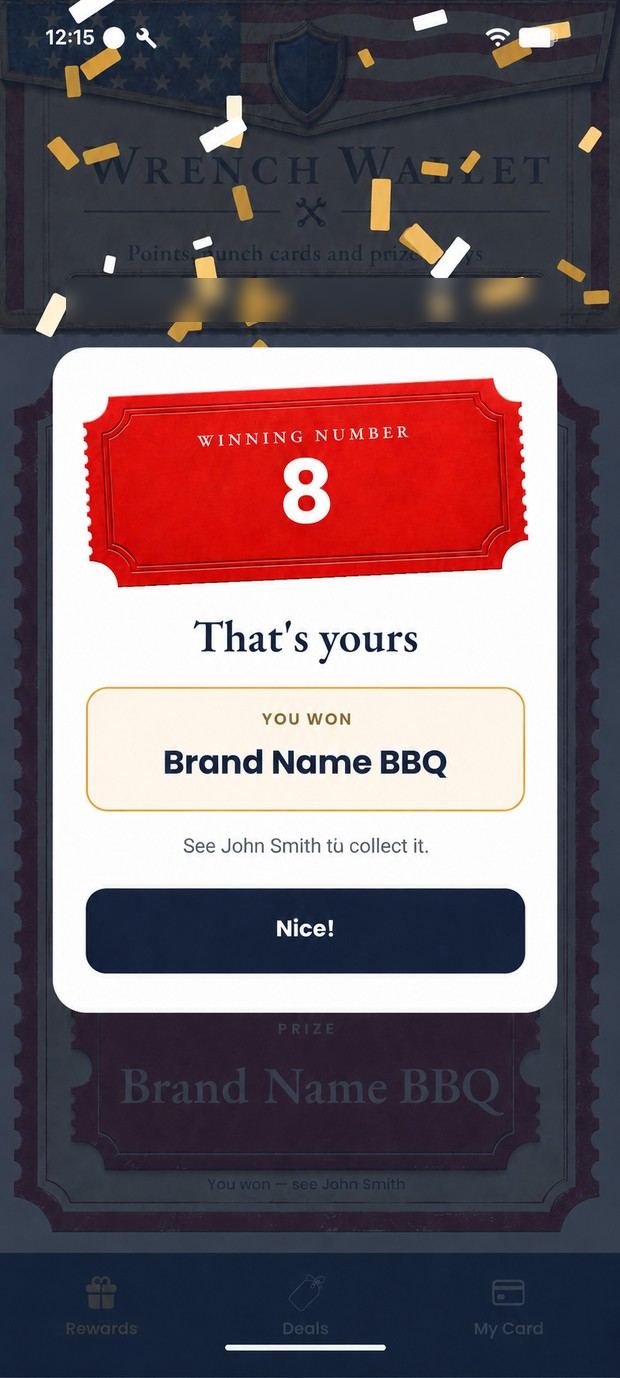
Next time you open the app, confetti falls and the ticket lands with your number on it. It tells you what you won and who to see.
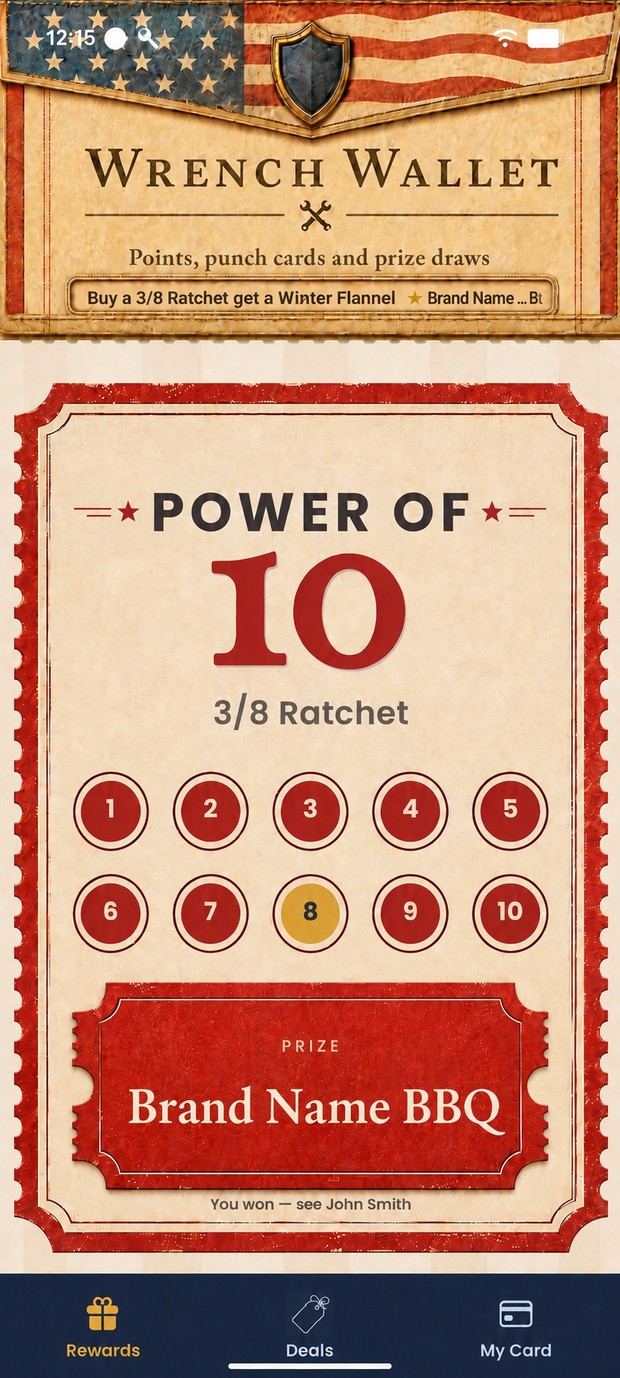
The winning number sits in gold and the prize is marked as waiting, or it says who won.
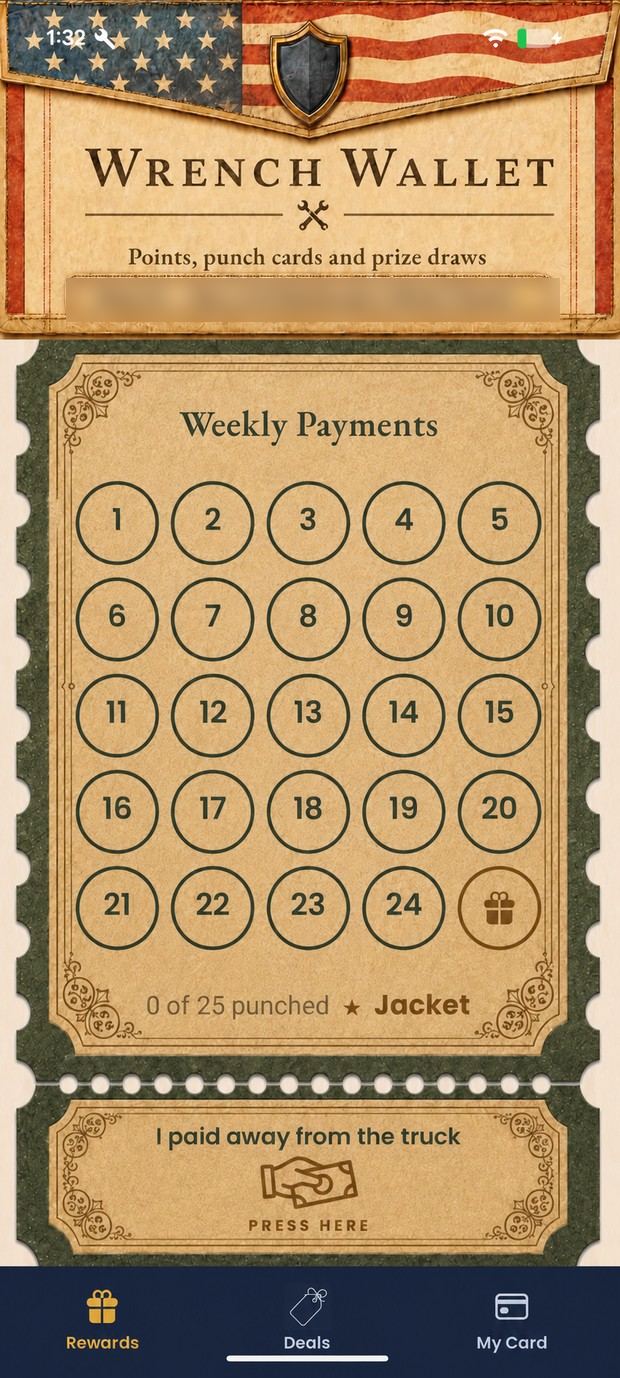
Settled up somewhere other than the truck? Say so here. Your dealer approves it and the points land.
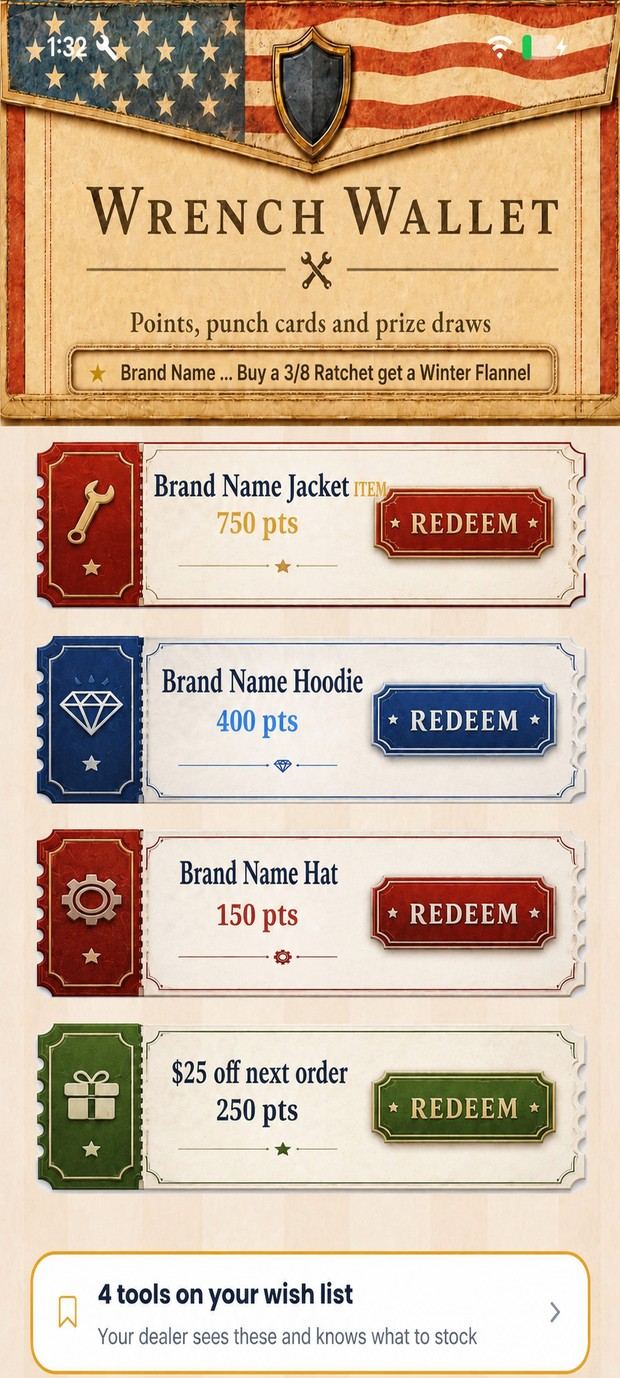
Everything you can claim right now, with its cost. Not on the truck that day? It goes on the owed list.
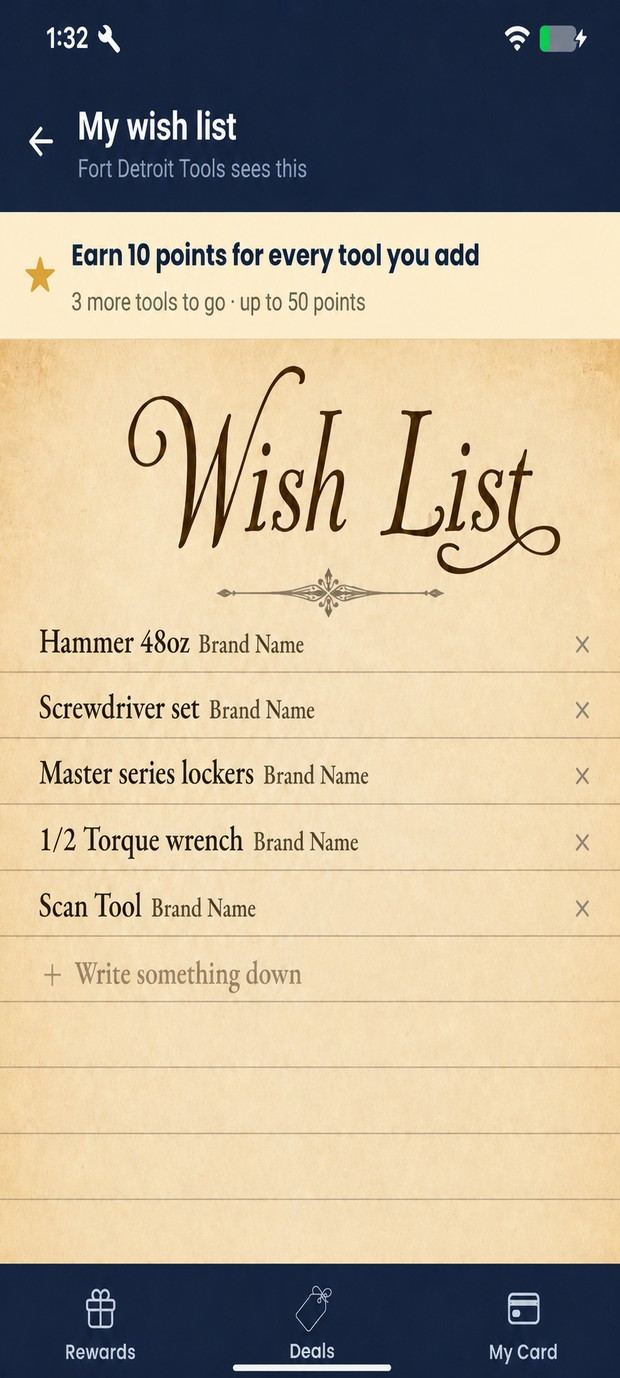
Write down the tools you plan to buy. Your dealer knows to bring them. Some dealers give points for adding to it.
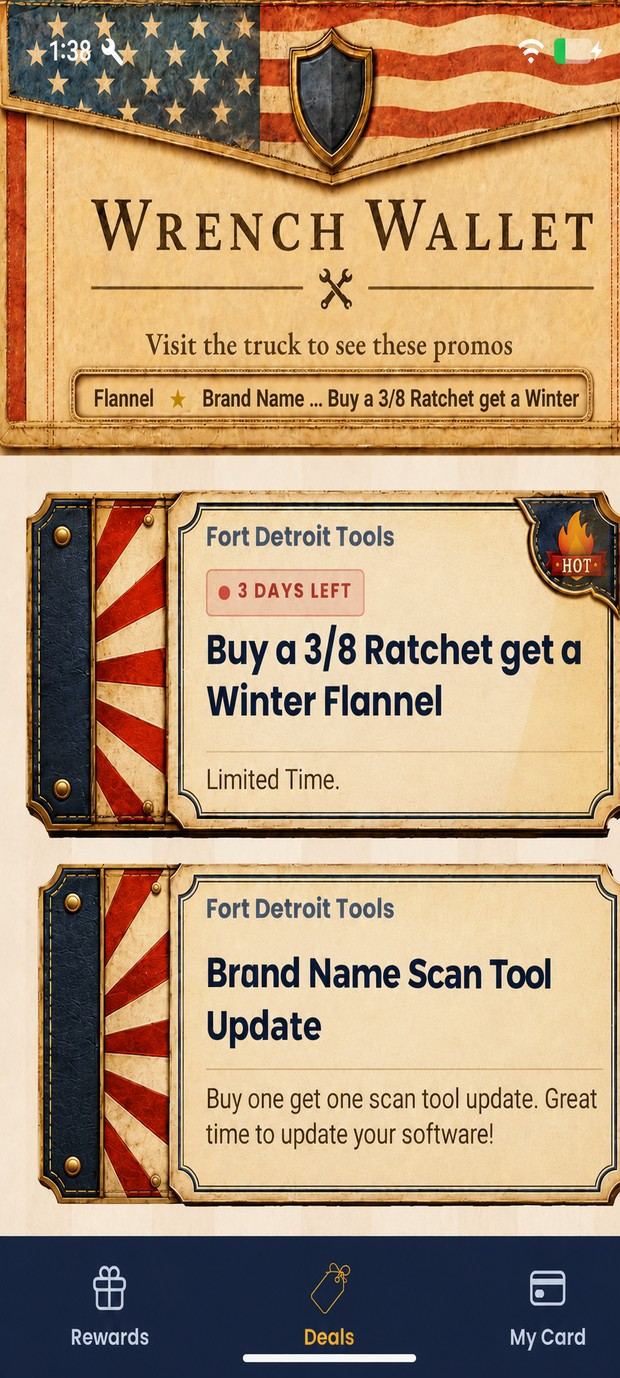
Your dealer's limited-time offers with time left on each. They scroll across the top of every screen too.
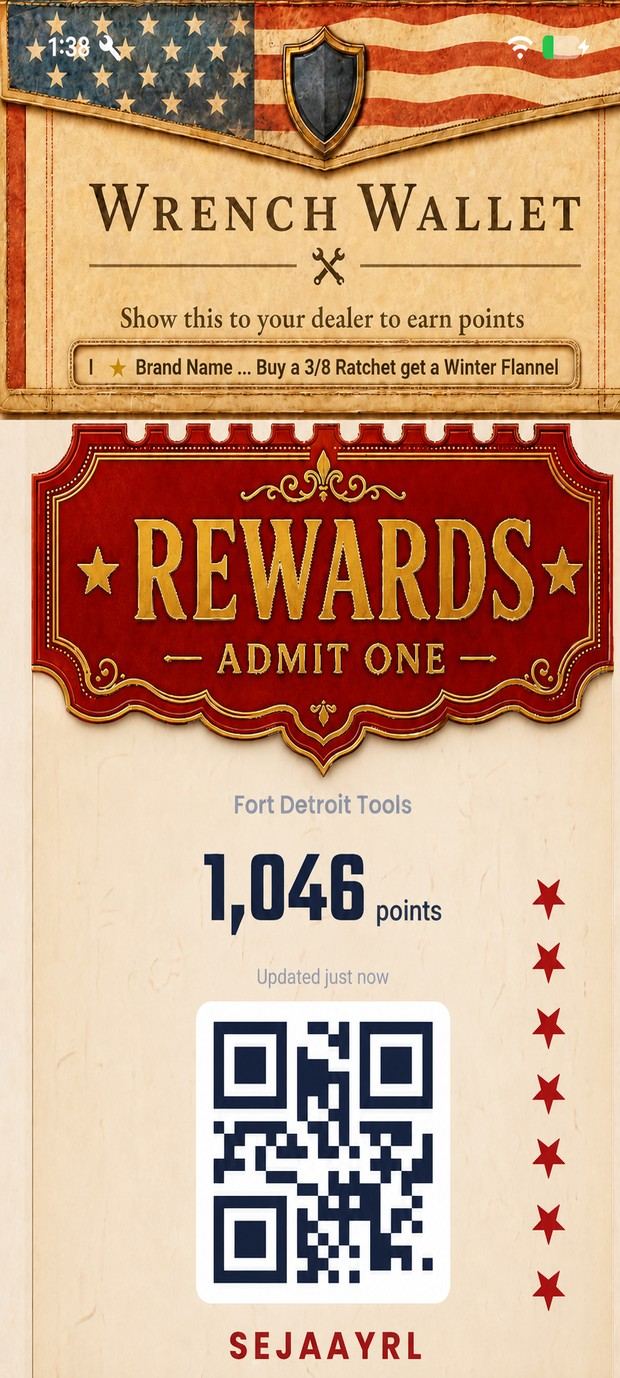
Your dealer scans this and pulls up your account. Balance and member code are on it too.
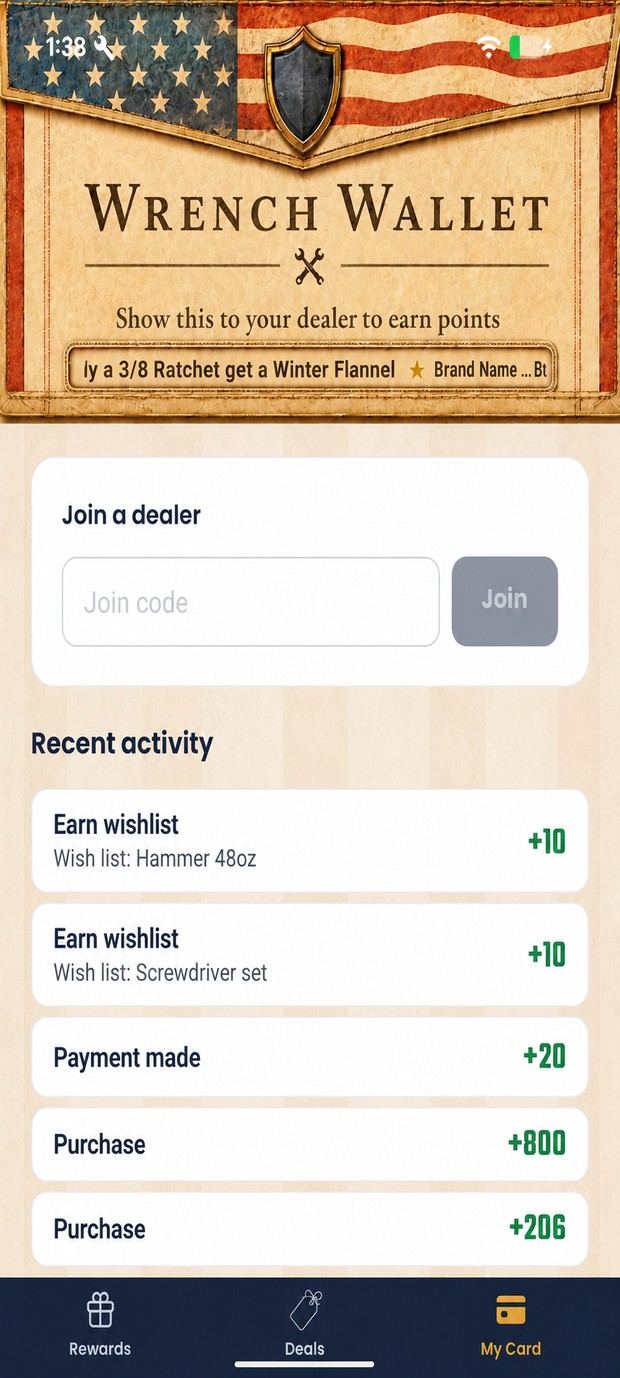
Enter your dealer's join code here. Below it, every point you've ever earned and where it came from.
03 · At the desk
The same program on a bigger screen, at wrenchwallet.net/dealer. Same email and password as the app.
01
Customers, rewards, punch cards, deals, ticket drives and rules. Not a cut-down version and not a separate subscription.
02
Reward rules, contests and wish lists are sit-down work. Logging a sale with a customer in front of you is still the app.
03
Runs in the browser you already have: shop computer, kitchen table, the machine you do your books on.
That's the whole thing
One truck, everything above, cancel any time.